
Connect Desktop Apps to Self Photos MCP
Start the service on Self Photos’ MCP page, then connect your desktop app using the steps below.
Local connection:
http://127.0.0.1:17238/mcpis available only on the computer running Self Photos. Remote workspaces, containers, and cloud agents usually cannot connect.
Before you start
- Start the service on Self Photos’ MCP page.
- Copy the server URL and
headers.Authorizationvalue from the configuration JSON. - Add and enable
selfphotosusing the steps below, then confirm that it is connected.
Replace placeholders in the examples with the matching field values. Keep access tokens private and update each client after rotating a token.
Desktop app setup
Qianwen Office (千问办公)
Open Connectors → Add → Paste JSON configuration, then save. Replace the Authorization placeholder with the value of headers.Authorization from the Self Photos configuration JSON:
{
  "mcpServers": {
    "selfphotos": {
      "type": "http",
      "url": "http://127.0.0.1:17238/mcp",
      "headers": {
        "Authorization": "<copy headers.Authorization from the Self Photos configuration JSON>"
      }
    }
  }
}
Doubao Work (豆包工作)
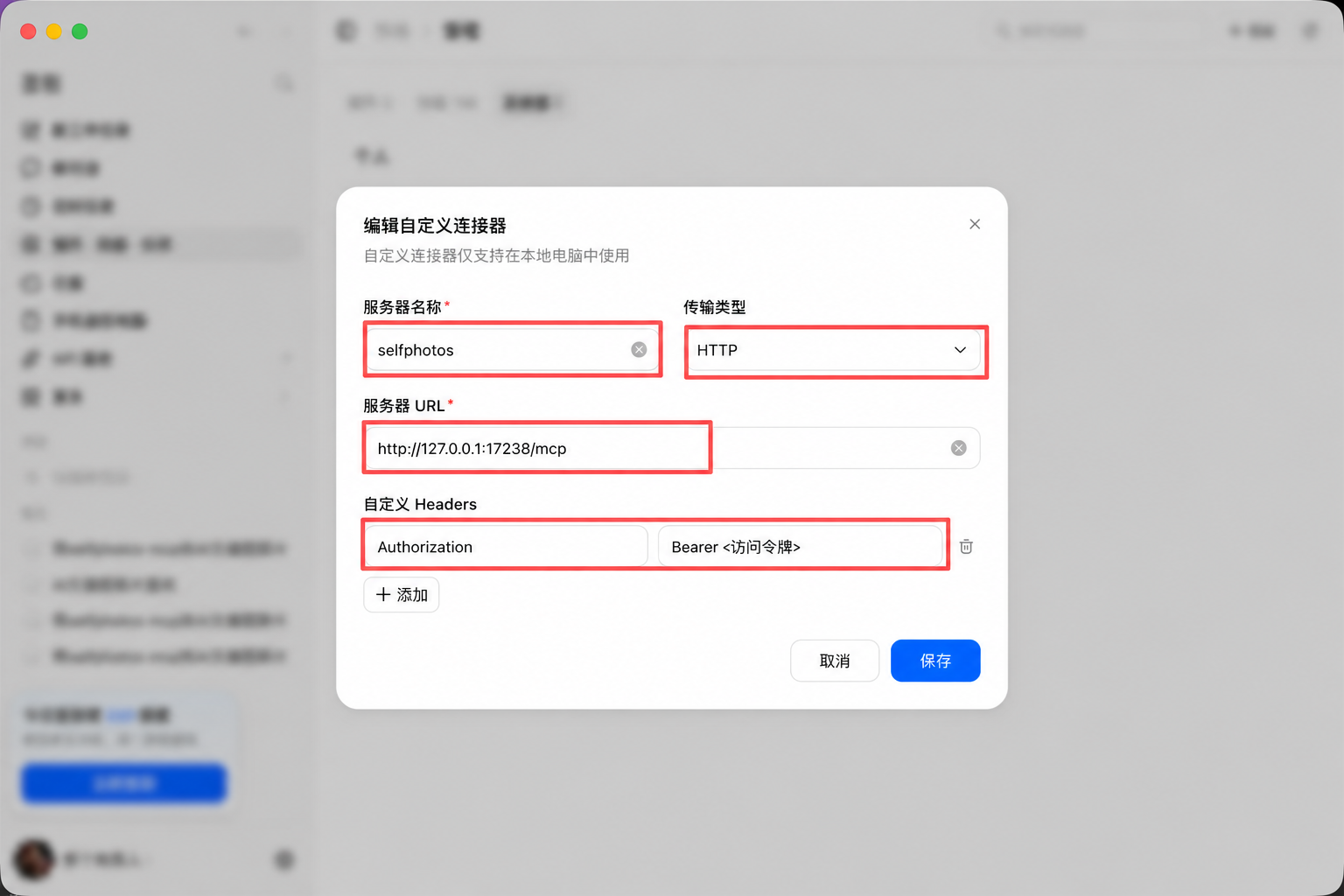
Open Plugins · Skills · Partners → Add → Create custom connector and enter:
- Name:
selfphotos - Type: HTTP
- URL:
http://127.0.0.1:17238/mcp Authorization: copy theheaders.Authorizationvalue from the Self Photos configuration JSON
Save and enable the connector.
ChatGPT
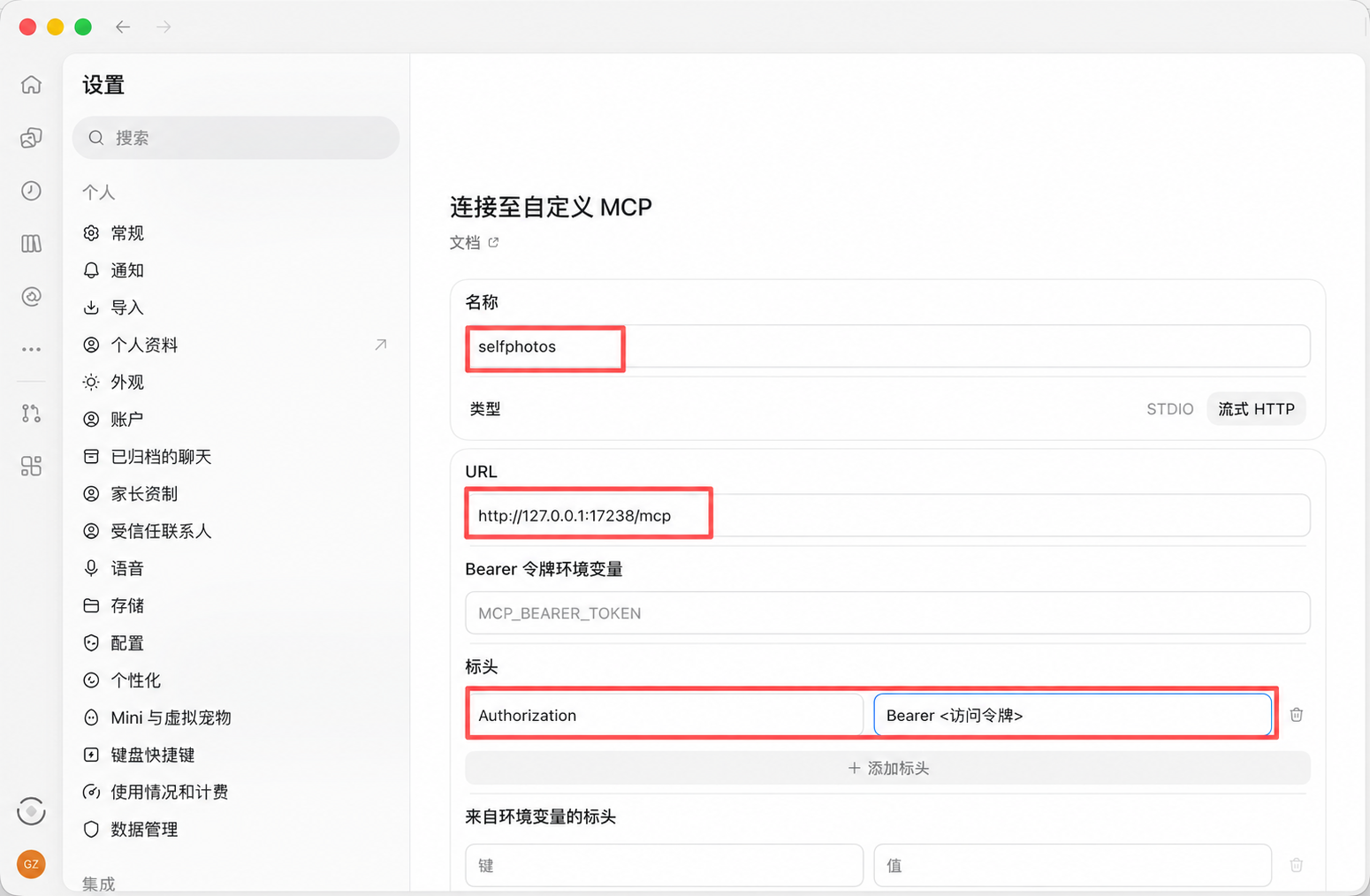
In ChatGPT desktop, open Settings → Integrations → Connect to custom MCP and enter:
- Name:
selfphotos - Type: Streamable HTTP
- URL:
http://127.0.0.1:17238/mcp - Under Headers, add
Authorizationand paste theheaders.Authorizationvalue from the Self Photos configuration JSON into its value field - Bearer token environment variable: leave blank; do not enter the token here
Save and confirm the connection.
Official guide: ChatGPT MCP.
Claude Desktop
- Open Settings → Developer → Edit Config to open
claude_desktop_config.json. - Add the
selfphotosentry to the existing JSON. If it already has anmcpServersobject, merge the entry into it. - Quit and restart Claude Desktop.
{
  "mcpServers": {
    "selfphotos": {
      "command": "npx",
      "args": [
        "-y",
        "mcp-remote",
        "http://127.0.0.1:17238/mcp",
        "--header",
        "Authorization: <copy headers.Authorization from the Self Photos configuration JSON>"
      ]
    }
  }
}
Config files:
- macOS:
~/Library/Application Support/Claude/claude_desktop_config.json - Windows:
%APPDATA%\Claude\claude_desktop_config.json.
Official guide: Connect local MCP servers.
WorkBuddy
Open Expert → Skills → Connectors → Custom Connector → Add MCP and enter this configuration.
After saving, select Custom Connector again, then trust and open it:
{
  "mcpServers": {
    "selfphotos": {
      "type": "http",
      "url": "http://127.0.0.1:17238/mcp",
      "headers": {
        "Authorization": "<copy headers.Authorization from the Self Photos configuration JSON>"
      }
    }
  }
}
Config files:
- macOS:
~/.workbuddy-ai/mcp.json - Windows:
%USERPROFILE%\.workbuddy-ai\mcp.json.
Official guide: WorkBuddy Connector.
Cherry Studio
Open Settings → MCP → Add → Import from JSON, import this configuration, and enable the server:
{
  "mcpServers": {
    "selfphotos": {
      "type": "http",
      "url": "http://127.0.0.1:17238/mcp",
      "headers": {
        "Authorization": "<copy headers.Authorization from the Self Photos configuration JSON>"
      }
    }
  }
}
Then open Work → Agent menu → Edit → MCP and enable the server for the Agent that should use Self Photos.
Official guide: Cherry Studio MCP.
Troubleshooting
The server does not connect
Confirm the Self Photos MCP service is running, the URL is correct, and the client is on the same computer. Remote workspaces, containers, and cloud agents usually cannot reach 127.0.0.1.
Authentication fails
Check that Authorization matches the headers.Authorization value in the Self Photos configuration JSON and that the example placeholder has been replaced. Save and reconnect.
The connection stopped working after token rotation
Copy the new headers.Authorization value from the configuration JSON, update the client, and reconnect.